Most PHP upgrades go wrong for one reason: the old version gets removed before the new one has been tried. The site breaks, and there is nothing to go back to.
This guide does it the other way round. You install the new PHP version next to the one you have, try your site on it, and only then switch. If something breaks, switching back is one line and a restart.
The steps are for a Linux VPS or dedicated server where you have root access, running Nginx or Apache with PHP-FPM. The commands use PHP 8.3, so swap in 8.4 if that is your target.
Which PHP version should you move to?
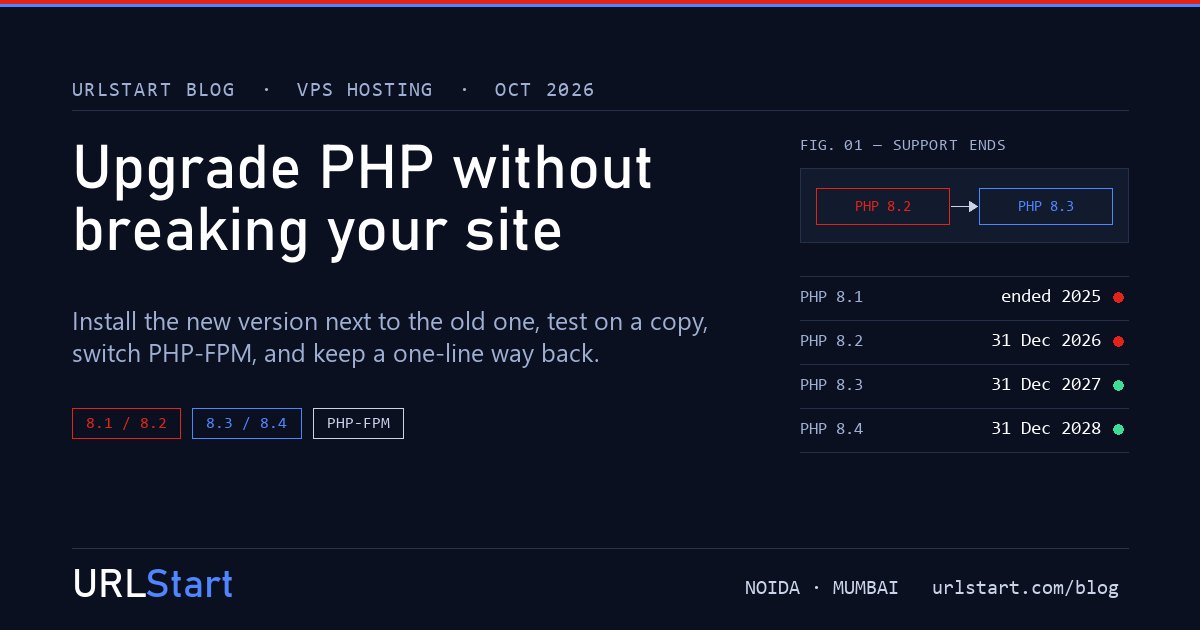
Each PHP version gets two years of active support and then security fixes only, until it reaches end of life:
- PHP 8.1: end of life on 31 December 2025. No more security fixes from the PHP project.
- PHP 8.2: security fixes only, ending 31 December 2026.
- PHP 8.3: supported until 31 December 2027.
- PHP 8.4: supported until 31 December 2028.
If you are on 8.1 or older, you are already running without upstream security fixes. The PHP2Shell vulnerability in October 2026 showed what that means: 8.1 got no official release. For most sites, PHP 8.3 is the safe target today. Choose 8.4 if your framework and plugins already list it as supported.
Step 1: check what your site needs
Before you touch the server, check the software on top of it:
- WordPress: core supports current PHP versions, but plugins are where things break. Check each plugin's page for "tested up to" and its PHP requirement, and update all of them first.
- Laravel, Symfony and other frameworks: each major version supports a range of PHP versions. Check the documentation for the version in your
composer.json. - Composer projects: run
composer why-not php 8.3in the project folder. It lists packages that would stop you.
Note your current version and PHP extensions too. You will need the same extensions on the new version:
php -v
php -m
Step 2: install the new PHP version alongside the old one
On Ubuntu, the usual source for several PHP versions is Ondřej Surý's PPA:
sudo add-apt-repository ppa:ondrej/php
sudo apt update
sudo apt install php8.3-fpm php8.3-cli php8.3-mysql php8.3-curl php8.3-mbstring php8.3-xml php8.3-zip php8.3-gd php8.3-intl
Add any other extensions that php -m showed, such as php8.3-redis or php8.3-imagick.
On AlmaLinux or Rocky Linux, Remi's repository does the same job. Its php83 packages install side by side as php83-php-fpm.
On a cPanel server, install the new version in WHM under EasyApache 4, then change one site at a time in MultiPHP Manager. On Plesk, add the version under Tools & Settings → Updates and pick it per domain.
Nothing changes for your live site yet. The old PHP-FPM is still the one answering requests.
Step 3: copy the site and test it on the new PHP version
Make a copy of the site on a test subdomain, such as staging.example.com, with a copy of the database. Point only that copy at the new PHP version.
With Nginx, that means a separate server block whose fastcgi_pass uses the new socket:
fastcgi_pass unix:/run/php/php8.3-fpm.sock;With Apache and PHP-FPM, it is the SetHandler line for that virtual host:
SetHandler "proxy:unix:/run/php/php8.3-fpm.sock|fcgi://localhost"Then turn on error logging for the test copy, open every important page, log in, place a test order, and submit every form. Watch the log while you do it:
sudo tail -f /var/log/php8.3-fpm.logStep 4: fix what the new PHP version complains about
Most upgrade problems are warnings that become errors. The common ones when moving to PHP 8.2, 8.3 and 8.4 are:
- Dynamic properties are deprecated (8.2). Setting a property a class never declared now raises a warning. Old plugins do this a lot. Updating the plugin usually fixes it.
- Removed and deprecated functions.
utf8_encode()andutf8_decode()are deprecated from 8.2. Old code may call functions removed earlier, such ascreate_function()oreach(), which fail outright. - Implicitly nullable parameters are deprecated (8.4). A parameter written
Foo $x = nullshould now be written?Foo $x = null.
For custom code, two tools save a lot of time. PHPCompatibility, a rule set for PHP_CodeSniffer, reports code that will not run on a chosen version. Rector can rewrite much of it for you. Run them on a copy, and read the changes before you keep them.
Step 5: switch the live site
When the test copy runs cleanly, point the live site at the new socket, using the same change as step 3, and reload the web server:
sudo nginx -t && sudo systemctl reload nginxWith Apache, run sudo apachectl configtest && sudo systemctl reload apache2.
Then set the command-line PHP to match, so cron jobs and Composer use the same version as the site:
sudo update-alternatives --set php /usr/bin/php8.3Keep an eye on the PHP-FPM and web server error logs for the next day. Anything you missed in testing shows up there first.
Step 6: keep the way back, then clean up
Leave the old PHP version installed for a week or two. If something breaks that testing missed, point the socket back, reload, and you are where you started while you fix it.
Once you are sure, remove the old version so it doesn't sit there unpatched:
sudo apt purge 'php8.1*'A quick checklist
- Check your CMS, plugins and Composer packages support the new PHP version.
- Install the new version next to the old one, with the same extensions.
- Test a copy of the site on the new version with error logging on.
- Fix deprecations and errors.
- Switch the live site's PHP-FPM socket, reload, and set the CLI version.
- Watch the logs, keep the old version for a week, then remove it.
Want it done for you?
On a URLStart VPS or dedicated server you have full root access, so the steps above work as written. If you would rather not do it alone, our support engineers can install the new PHP version next to your current one and walk through the switch with you.