Updating PHP after PHP2Shell was the urgent part. This is the part people skip: making sure nobody got in before you patched.
The attacks started on 17 October 2026, four days before the fix was public. If your server ran a PHP website on the internet at any point after that, and it was on an unpatched version, it is worth an hour to check it. Most servers will turn out clean. The point is to know, not to guess.
Everything below runs over SSH as root or with sudo. Replace /var/www with wherever your sites live. On cPanel servers that is usually /home/*/public_html.
Before you start: don't destroy the evidence
If you suspect a break-in, resist the urge to delete things as you find them. Note what you see, copy suspicious files somewhere outside the web root, and take a snapshot or backup of the server first if you can. If it turns out to be serious, that record is what tells you how far it went.
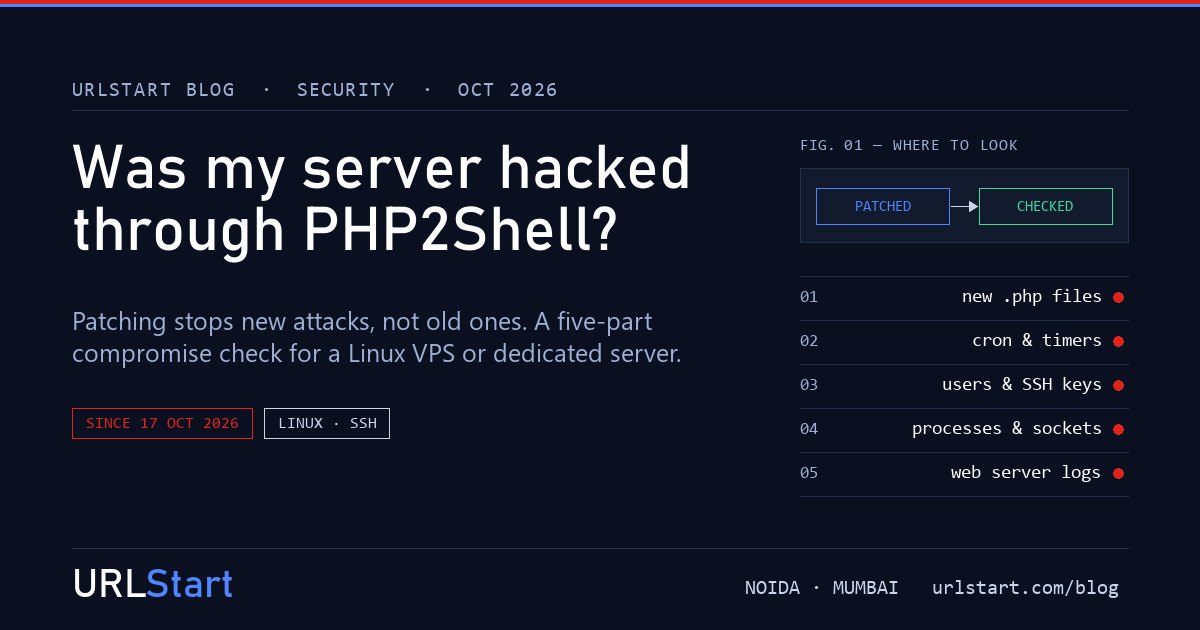
1. Look for PHP files that shouldn't be there
A successful attack usually leaves a web shell: a small PHP file that lets the attacker come back whenever they like. Start with PHP files changed since the attacks began:
find /var/www -name '*.php' -newermt '2026-10-17' -lsYour own deploys and plugin updates will show up here too, so read the list rather than panicking at it. What stands out is a file you don't recognise, a random name like wp-cache-x7k.php, or anything in a folder that should only hold images.
Upload folders should never contain PHP at all:
find /var/www -path '*upload*' -name '*.php*' -lsThen search for the patterns web shells tend to use. Legitimate code uses some of these too, so treat hits as things to read, not proof:
grep -rlE 'eval\(base64_decode|gzinflate\(base64_decode|assert\(\$_(POST|GET|REQUEST)|system\(\$_' /var/www --include='*.php'Open anything suspicious in a text editor. A real web shell is rarely subtle once you look at it: long strings of encoded text, a password check on a request parameter, and a call that runs whatever comes in.
2. Check scheduled jobs
Attackers like cron because it brings them back after a reboot or after you delete their file. Check the web server user, root and the system cron folders:
crontab -l -u www-data
crontab -l -u root
ls -la /etc/cron.d /etc/cron.daily /etc/cron.hourly /var/spool/cron/crontabs
Use apache or nginx instead of www-data on AlmaLinux or Rocky Linux, and each account's user on cPanel. Anything that downloads a script with curl or wget and pipes it into a shell is a red flag.
On servers with systemd, also look for timers you didn't create:
systemctl list-timers --all3. Check users and SSH keys
A careful attacker adds a way in that does not depend on your website at all.
awk -F: '$3 >= 1000 || $3 == 0 {print $1, $3, $7}' /etc/passwdThat lists root and normal user accounts. Every name should be one you know. Then check who can log in with a key:
cat /root/.ssh/authorized_keys
ls -la /home/*/.ssh/authorized_keys
An unfamiliar key, or a key file changed recently, needs explaining. last -20 shows recent logins, and /var/log/auth.log on Ubuntu or /var/log/secure on AlmaLinux shows SSH activity.
4. Check what is running and who it talks to
Crypto miners are the most common thing attackers run on a hacked server, and they are easy to spot because they use all the CPU. Sort processes by CPU and look at the top:
ps aux --sort=-%cpu | head -15Anything running as the web server user that isn't PHP or your web server deserves a closer look. So does any process running from /tmp, /dev/shm or /var/tmp.
Then list open network connections:
ss -tunapYou are looking for outgoing connections you can't explain, especially from PHP or the web server user to addresses on unusual ports.
5. Read your web server logs
The access log shows how someone got in, if they did. Two quick checks are worth doing.
Requests to PHP files that are not part of your site:
grep -E 'POST .*\.php' /var/log/nginx/access.log | awk '{print $7}' | sort | uniq -c | sort -rn | head -30Use /var/log/apache2/access.log, /var/log/httpd/access_log or your control panel's log path as needed. A file you found in step 1 receiving POST requests is close to proof.
Then look at PHP-FPM and web server error logs around 17–22 October for crashes and out-of-memory errors. PHP2Shell abuses PHP's memory handling, so a burst of worker crashes from one address is worth noting.
What to do if you find something
If you find a web shell, an unknown user or key, or a miner, assume the attacker had full access to everything the web server could reach. That includes your site files, your configuration and your database.
The safe fix is not to clean the server in place. You can't be sure you found everything, and attackers often leave more than one way back. Instead:
- Build a new server with a patched PHP version.
- Restore your site files and database from a backup taken before the break-in. Check the backup's PHP files with step 1 before you trust it.
- Change every secret the old server knew: database passwords, CMS admin passwords, API keys, payment gateway keys and SMTP passwords.
- Point your DNS at the new server and keep the old one switched off, not deleted, until you are sure you don't need it for investigation.
If personal data was on the server, you may also have a legal duty to report the breach. In India, the DPDP Act's rules cover that.
If everything looks clean
Good. Make it easier next time:
- Keep a list of the PHP files your site should have, or deploy from git, so a new file stands out immediately.
- Set up automatic security updates for the operating system and PHP packages.
- Keep off-server backups for at least 30 days. A backup from yesterday is no help if the attacker got in last month.
Need a second pair of eyes?
If your server is with us and something in these checks worries you, open a ticket. Our engineers can look at the server with you, and on dedicated servers we can attach a rescue image over IPMI so you can inspect the disks without booting the suspect system.