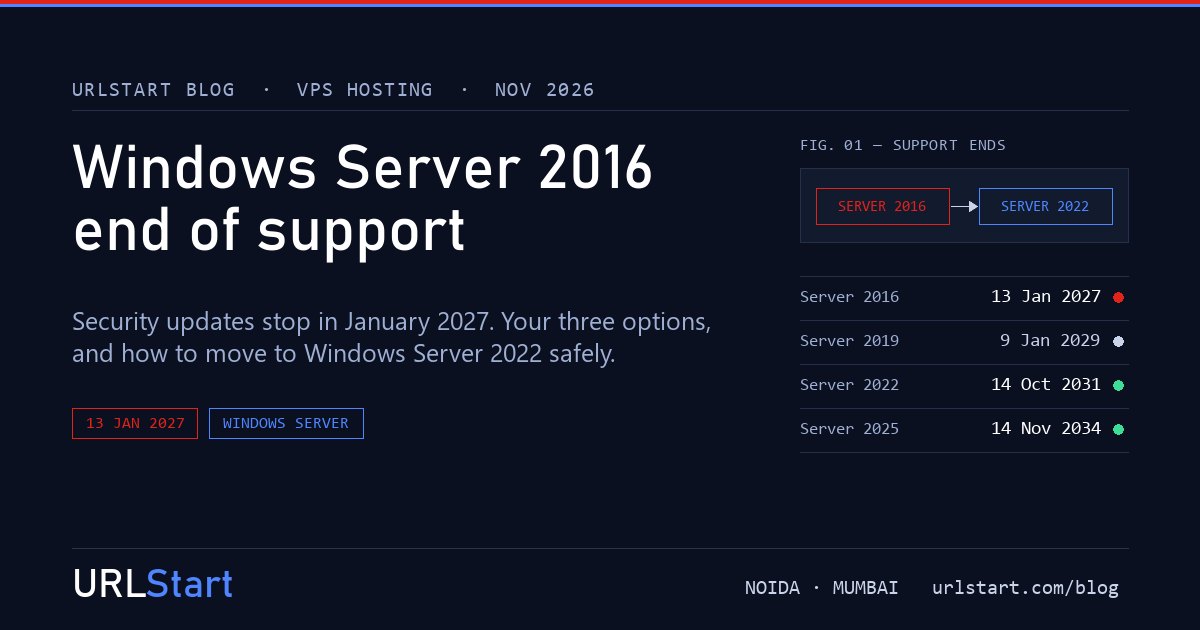
If you run anything on Windows Server 2016, a website, an accounting system, an RDP server for your team or a trading platform, it has a deadline. Microsoft ends extended support for Windows Server 2016 in January 2027. Microsoft's latest notice gives the date as 13 January 2027, and the January 2027 security update is the last one it will release for free.
Here is what that means in practice, and how to move off Windows Server 2016 before it becomes a problem.
What "end of support" actually means
Nothing switches off on the day. The server keeps booting, your applications keep running and Remote Desktop still works.
What stops is security updates. Every month Microsoft fixes newly found vulnerabilities in Windows. After January 2027, those fixes stop for Windows Server 2016 unless you pay for them. Every new flaw found after that date stays open on your server for good.
That matters most for a server on the internet, which is exactly what a VPS is. An unpatched Windows server with Remote Desktop open is one of the most common ways businesses get hit by ransomware.
It also affects:
- Compliance. Audits, cyber insurance and payment-card rules usually require supported, patched operating systems.
- Software support. Vendors drop support for old Windows versions, so new releases of your applications may stop installing.
Your three options
1. Upgrade in place
Microsoft supports a direct in-place upgrade from Windows Server 2016 to Windows Server 2019, 2022 or 2025, according to its official upgrade table. You run the newer installer on the existing server and keep your applications and settings.
It is the fastest option on paper, but it carries risk: old drivers, old software and years of accumulated settings all come along, and if the upgrade fails half-way you need a full backup to recover. Always take a snapshot or full image first.
2. Rebuild on a new server (recommended)
Create a new server with Windows Server 2022 (or 2025), install your applications fresh, move the data across, test, and switch over. The old server keeps running until you are sure.
It takes longer to plan, but it is the safest route. You get a clean system without old leftovers, you can test everything before users touch it, and going back is as easy as pointing users at the old server again.
3. Pay for Extended Security Updates
Microsoft sells Extended Security Updates (ESU) that keep security fixes coming for Windows Server 2016 after January 2027. It buys time, not a solution: the price is significant and it only delays the move. Use it if an application genuinely cannot move yet.
Which version to move to
- Windows Server 2022 is the safe default today. It is mature, widely supported by business software, and supported by Microsoft until October 2031.
- Windows Server 2025 is the newest release, supported until November 2034. It is a good choice for new builds once your applications list it as supported.
Check each application's vendor before you choose. Accounting software, line-of-business apps and anything using an old .NET Framework are where surprises usually appear.
How to move to Windows Server 2022 on a new VPS
This is the rebuild route, step by step.
1. List what the old server does
Write down every role and application: IIS websites, SQL Server, Remote Desktop users, scheduled tasks, file shares, services and the ports they use. Run this on the old server to see what is listening:
netstat -abno2. Check licences
Remote Desktop users need RDS licences (CALs) on the new server too. Our post on RDS CALs on a Windows VPS explains how many you need. Check that your application licences can move to a new machine, as some are tied to the server.
3. Build the new server
Order a VPS with Windows Server 2022, apply all updates, and secure it before anything else: a non-default administrator account, Windows Update on, the firewall limited to what you need, and RDP restricted to known addresses where you can. Our first twenty minutes on a Windows VPS covers each step.
4. Install and copy
Install your applications fresh on the new server, then copy the data across: databases backed up and restored, website files copied, file shares moved. For SQL Server, take a full backup on the old server and restore it on the new one.
5. Test while the old server is live
Log in as real users, open the applications, run a report, place a test order. Fix anything that breaks now, while nobody depends on the new server yet.
6. Switch over
Pick a quiet time. Stop changes on the old server, copy the final data, then point users and DNS at the new server. Keep the old server running, untouched, for a week or two in case you need to go back.
Don't leave it to January
Moving a server is rarely difficult, but it always takes longer than expected once licences, vendors and testing are involved. Starting in December gives you time to do it calmly instead of during the first week after updates stop.
Windows VPS with URLStart
Our Windows VPS runs Windows Server 2019 or 2022 with the licence included, or bring your own, with full administrator access over RDP in our Tier IV datacenter in Noida. If you are moving off Windows Server 2016, we can set up the new VPS next to your current server and help you move your applications and data across, free of charge.
Sources
- Support for Windows Server 2016 will end in January 2027, Microsoft
- Windows Server 2016 lifecycle, Microsoft
- Windows Server upgrade overview, Microsoft